The module sells paid extras together with a booking: breakfast, dinner, final cleaning, a gas bottle, a skipper, a hot tub — anything a customer can add to a rental. An add-on lands in the order as a line of its own, with its own price and tax rate, and shows in WooCommerce sales reports, in e-mails and on the invoice.
The screenshots in this chapter come from a Polish-language admin; the English labels are given next to each field.
Enabling the module
Enable the module on BookingHive → Modules. Its Settings link leads to a single setting — where the customer picks the add-ons:
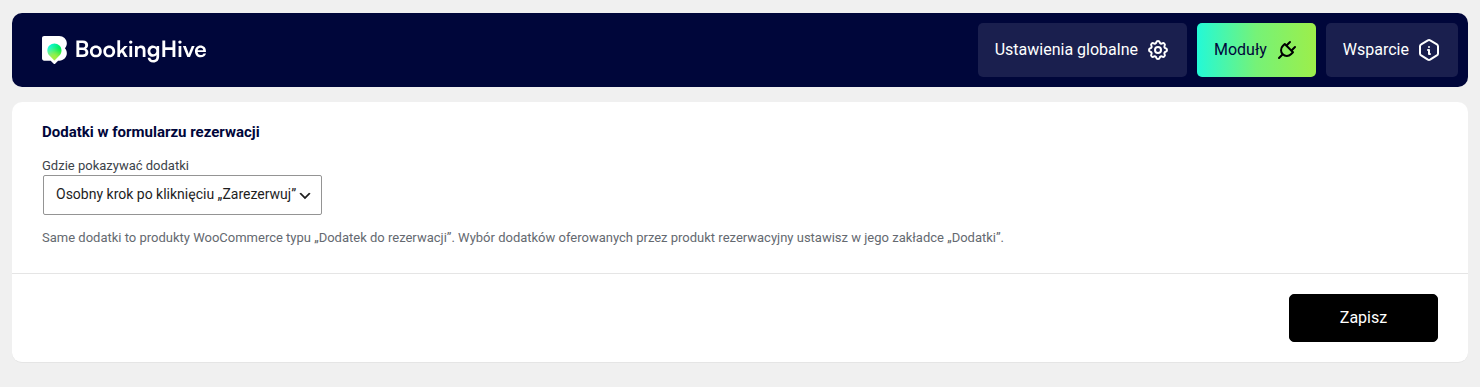
- Separate step after clicking "Reserve" (default) — once the dates are chosen and Reserve is clicked, the calendar makes way for a screen with the add-ons.
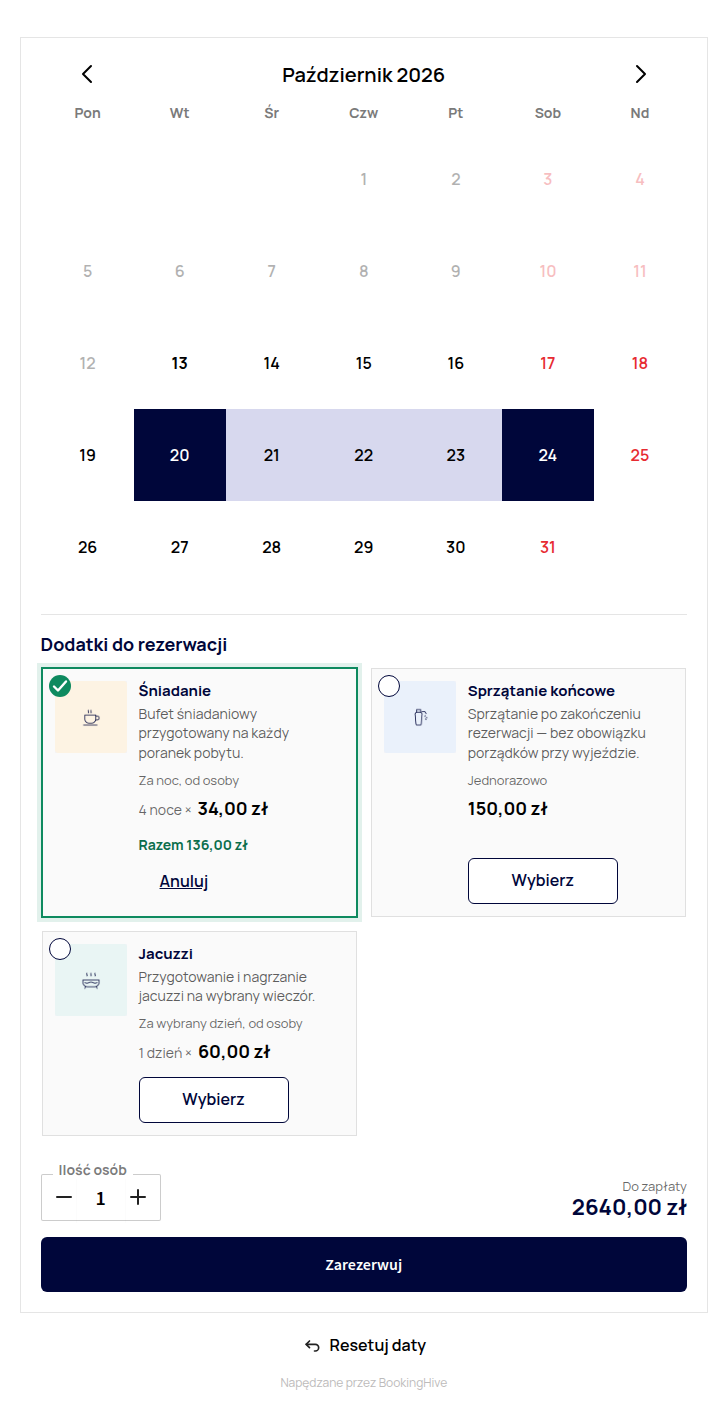
- Section under the calendar — the add-ons are visible right away, between the calendar and the summary; the customer ticks them before clicking Reserve.
A product that offers no add-on works exactly as without the module — no extra step, no extra click.
The catalogue: products of the "Booking add-on" type
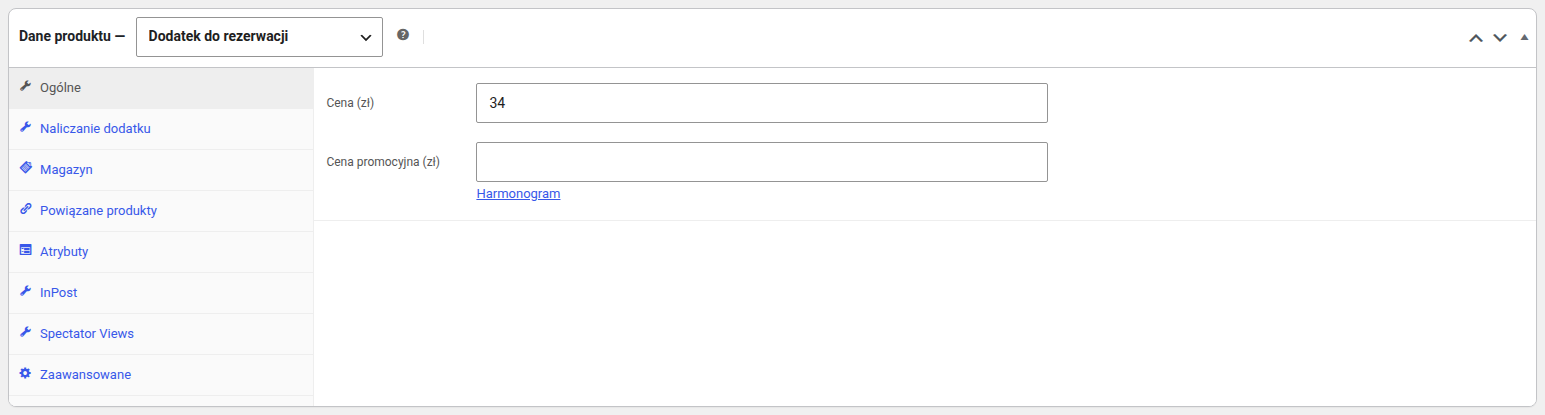
Every add-on is a WooCommerce product of the Booking add-on type. You create it like any product: name, short description (shown on the tile), product image, price, tax class and, if needed, stock. Such a product is hidden from the shop and search automatically and cannot be bought without a booking.
The tile crops the image to a wide, low frame, so pictures with the subject in the middle work best.
The Add-on billing tab sets what the customer pays for:
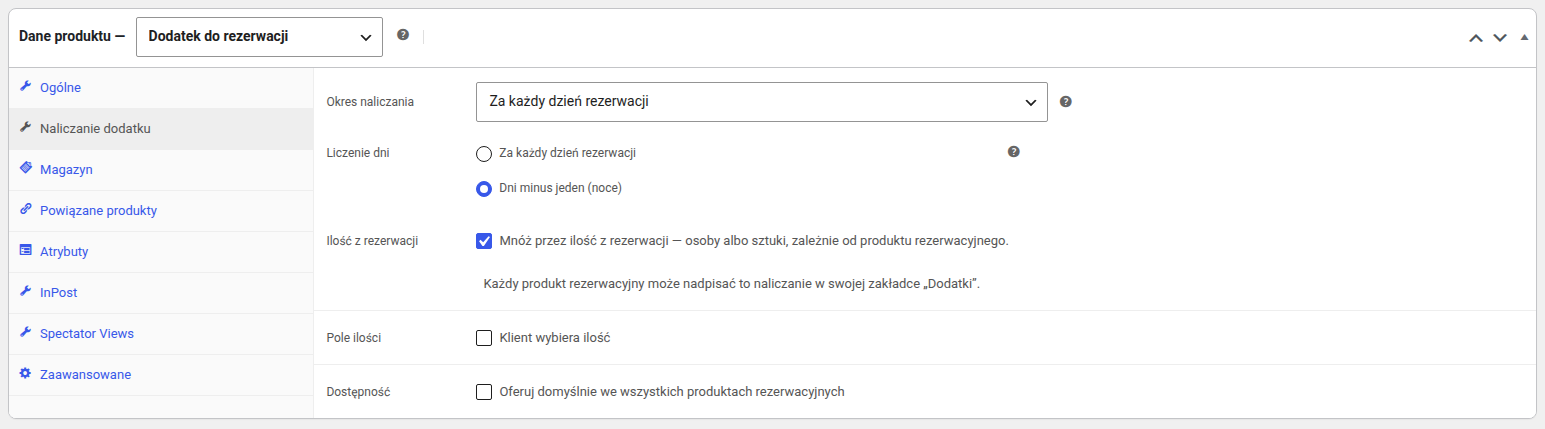
- Billing period — One-time: once per booking (final cleaning, a gas bottle); Every day of the booking: price times the number of days (a skipper, a bike rental); Selected days: the customer picks days within the booking (dinner on two chosen evenings, a hot tub for one evening).
- Day counting (only with Every day of the booking) — Every day of the booking counts all selected days, as the rental price does; Days minus one (nights) counts nights, which suits accommodation (breakfast).
- Booking quantity — multiplies the price by the booking quantity: guests or units, depending on the quantity mode of the bookable product (chapter 8).
- Quantity field — the customer chooses how many pieces (e.g. 2 gas bottles), up to the given maximum.
- Availability — Offer in every bookable product by default adds the add-on to every product, including ones created later. Without it, you switch the add-on on per product.
Example: breakfast at 34 zł, Every day of the booking, counted as nights, × booking quantity — a stay from 12 to 19 August for two guests costs 34 zł × 7 nights × 2 guests = 476 zł.
Add-ons on a bookable product
A product of the Booking type gets an Add-ons tab listing the whole catalogue:
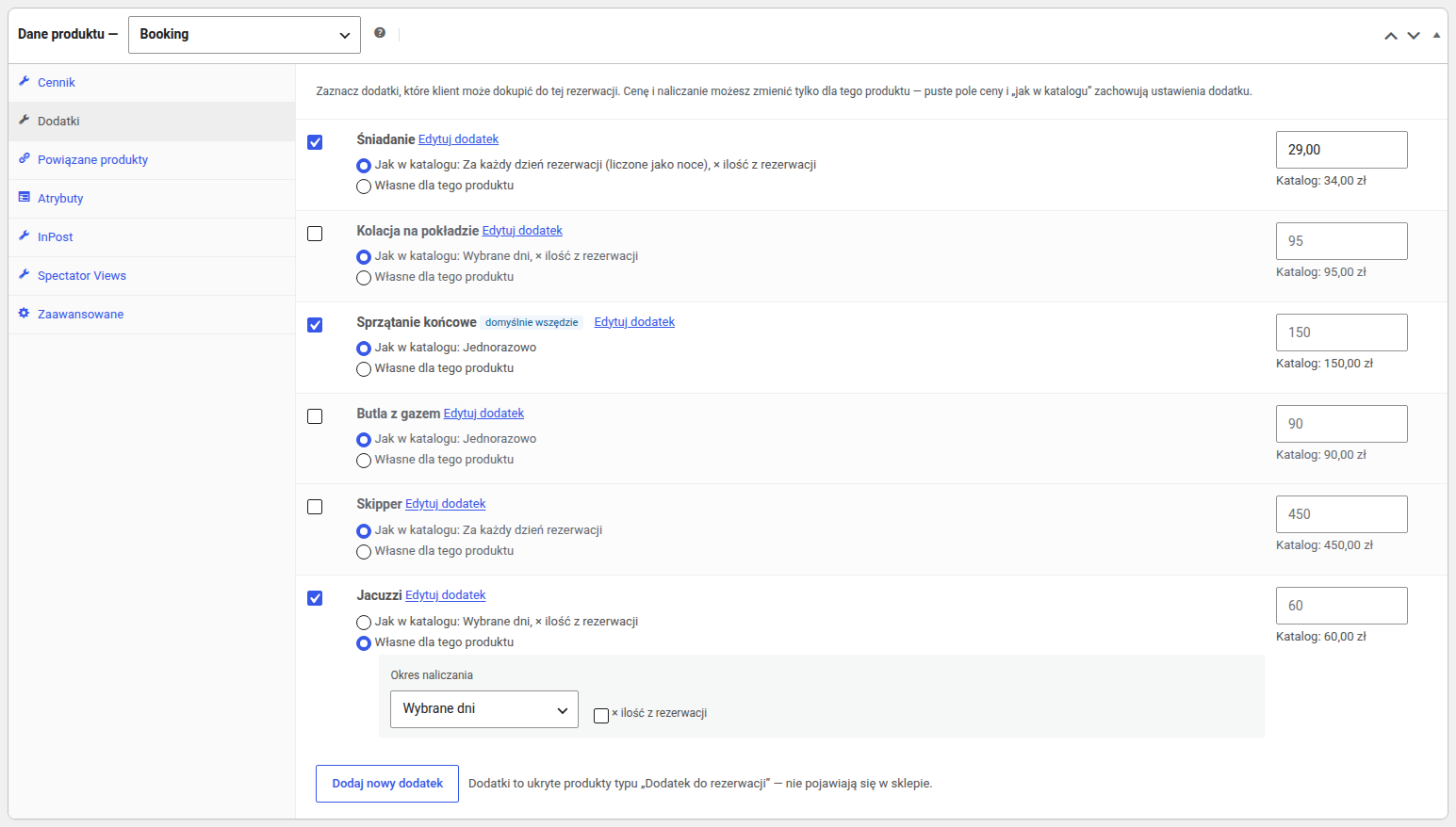
- The checkbox decides whether the product offers the add-on. The default everywhere badge marks an add-on offered by every product until you untick it here.
- Price for this product — an empty field means the catalogue price; an amount applies to this product only (breakfast at 29 zł instead of 34 zł in the screenshot).
- Billing — As in the catalogue or Custom for this product. The same add-on is often charged differently: a hot tub per guest in a hotel, once for the whole cabin in a cabin. In the screenshot the cabin's hot tub has custom billing — Selected days, not multiplied by guests.
The customer's side
After choosing the dates and clicking Reserve, the customer sees the add-ons this product offers. Above the tiles: the chosen dates and Change dates, which returns to the calendar:
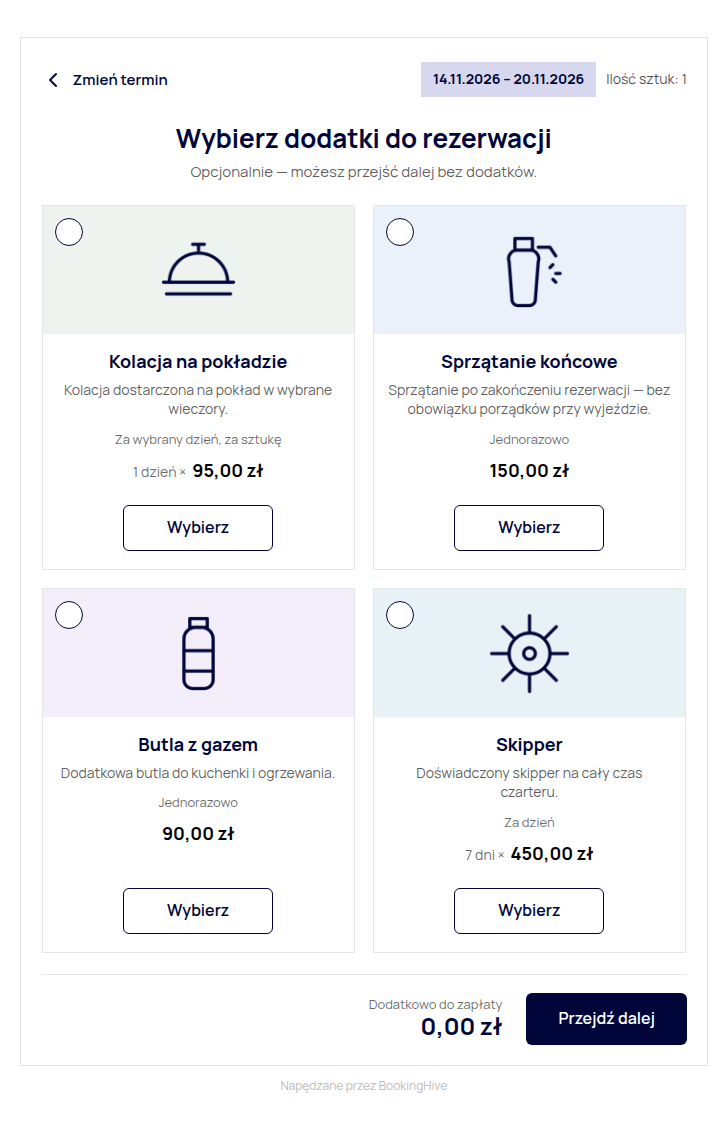
A tile shows the picture, description, billing and price. Once an add-on is selected, the tile shows what the amount is made of (e.g. 7 days × 450.00 zł) and the bar at the bottom shows how much the customer pays on top. A Selected days add-on lets the customer tick days of the booking, an add-on with a quantity field — the number of pieces:
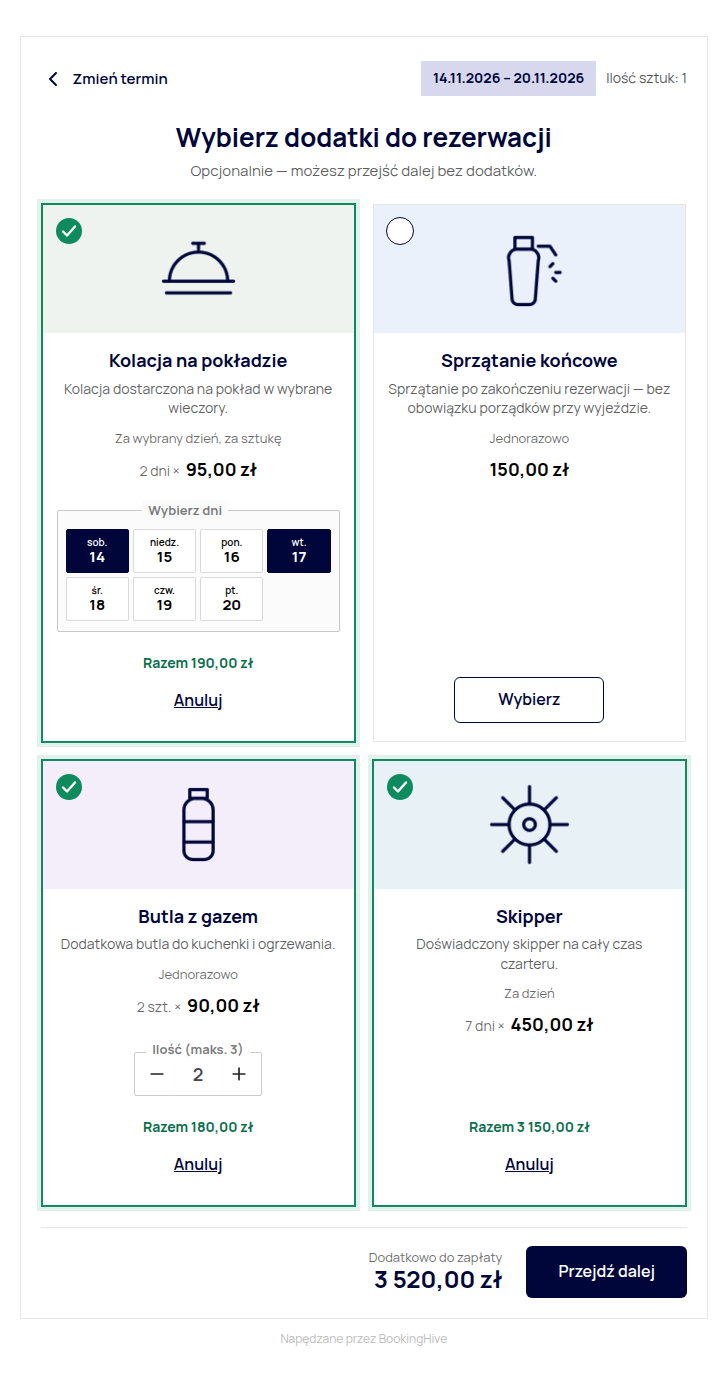
Every amount is computed by the server — the browser only displays it, so what the customer sees is exactly what they pay. Continue adds the booking and the selected add-ons to the cart.
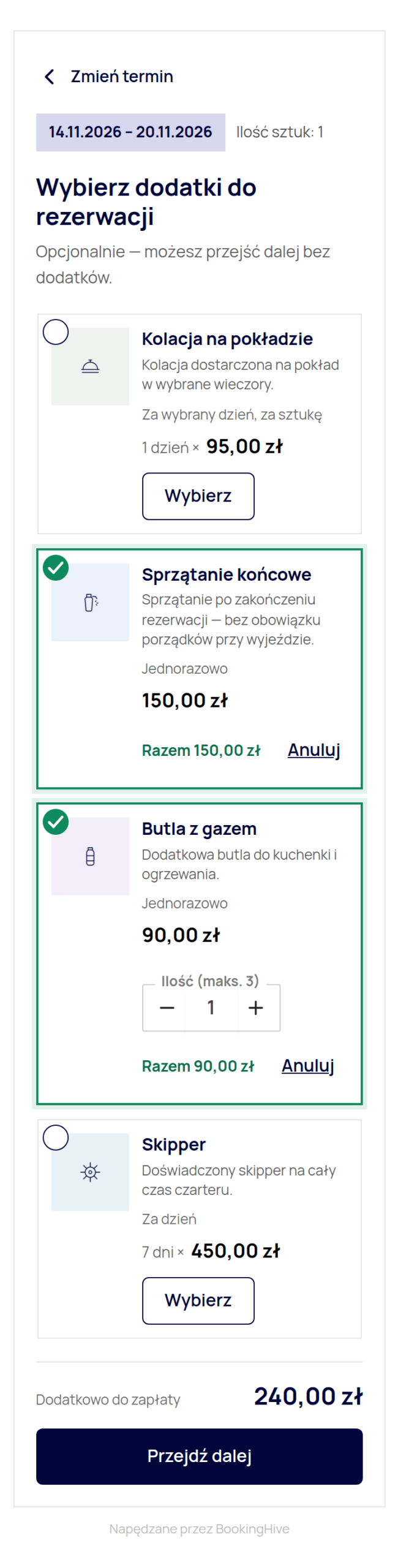
On a phone the tiles stack:
With Section under the calendar, the add-ons are part of the form and become active once dates are picked:
Cart, order and e-mails
In the cart the add-ons sit under their booking, with the billing description and the selected days. They have no remove button and no quantity field — to change add-ons the customer removes the booking and books again. Removing the booking removes its add-ons too.
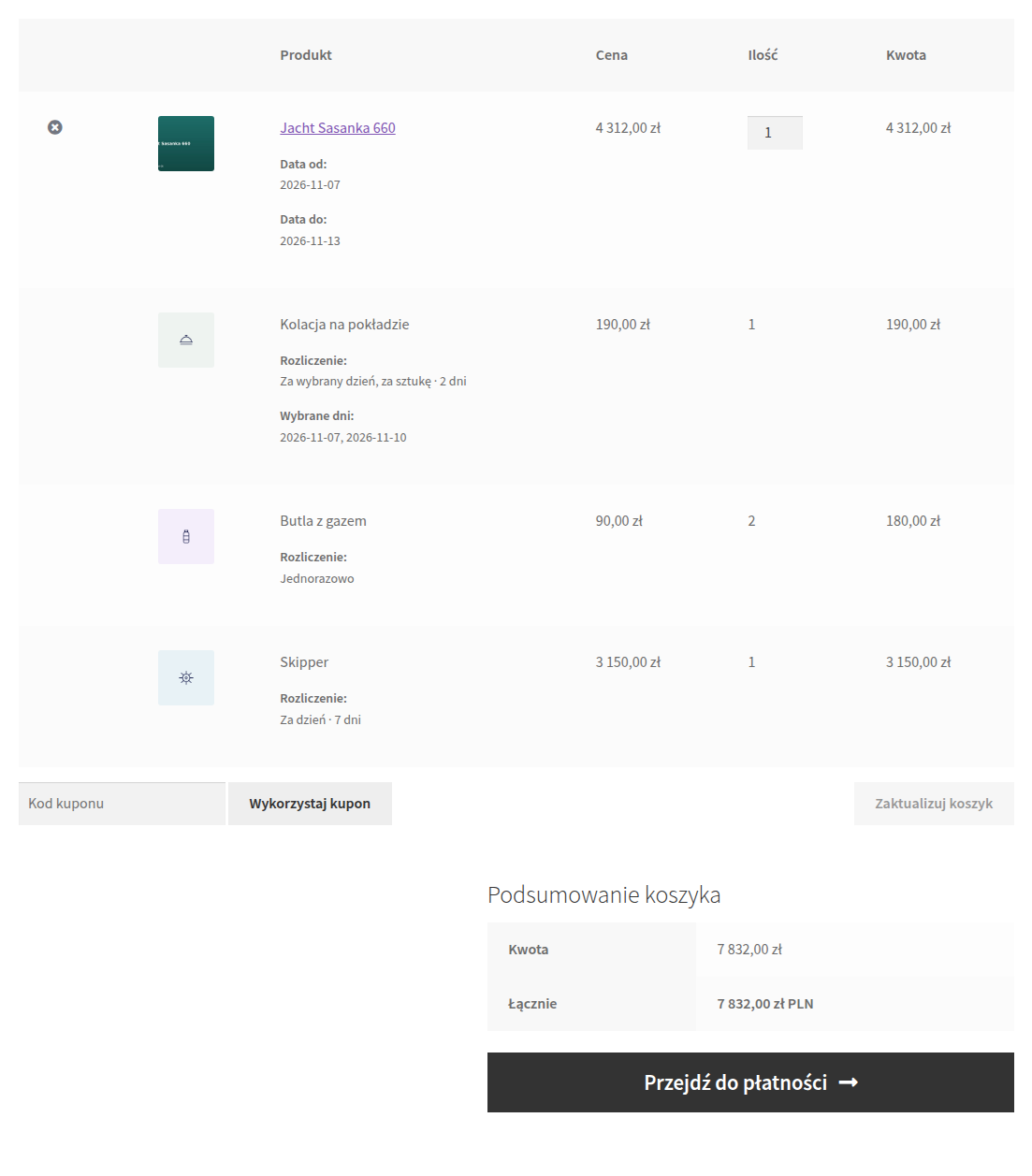
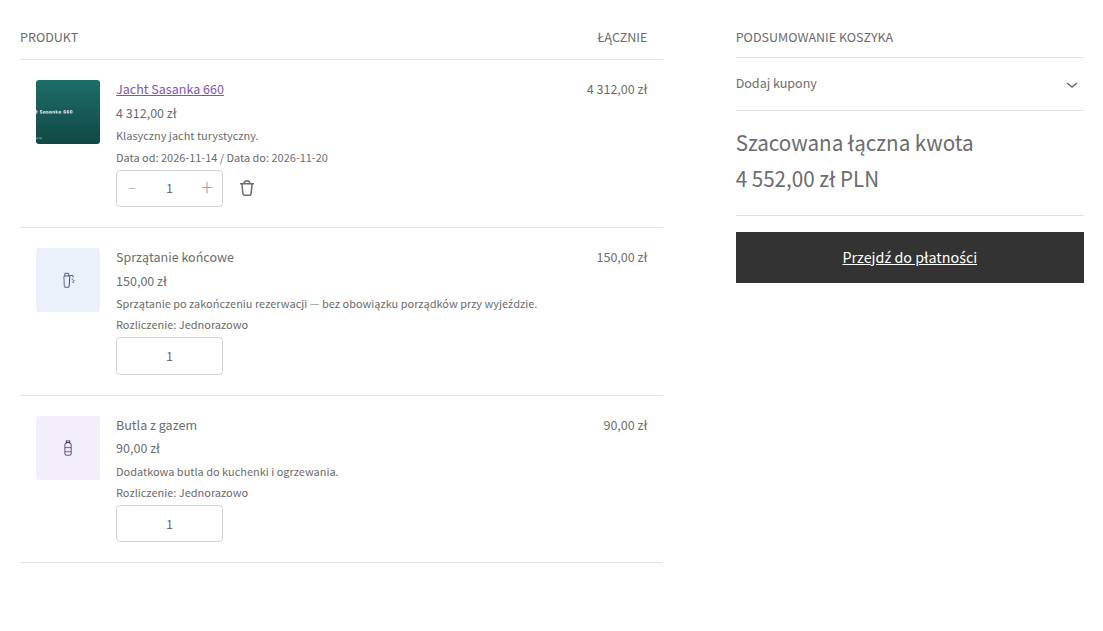
The same in the block cart:
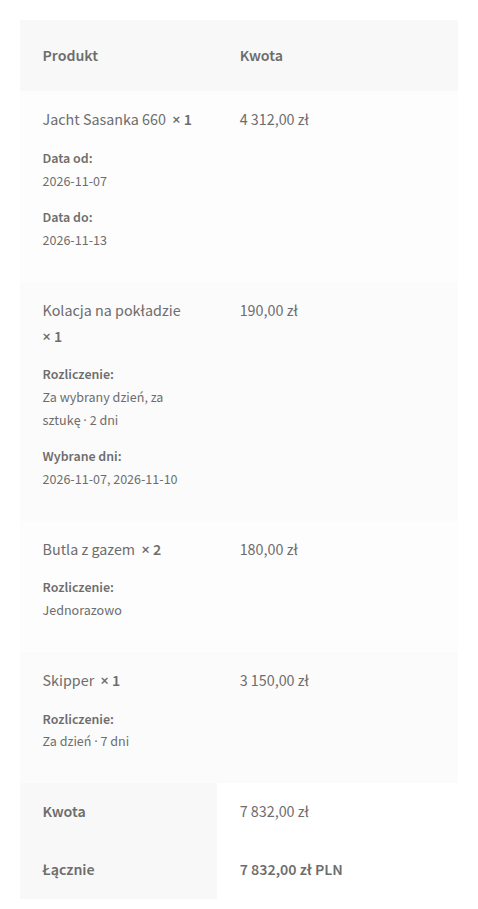
The order summary at checkout and the confirmation after placing the order:
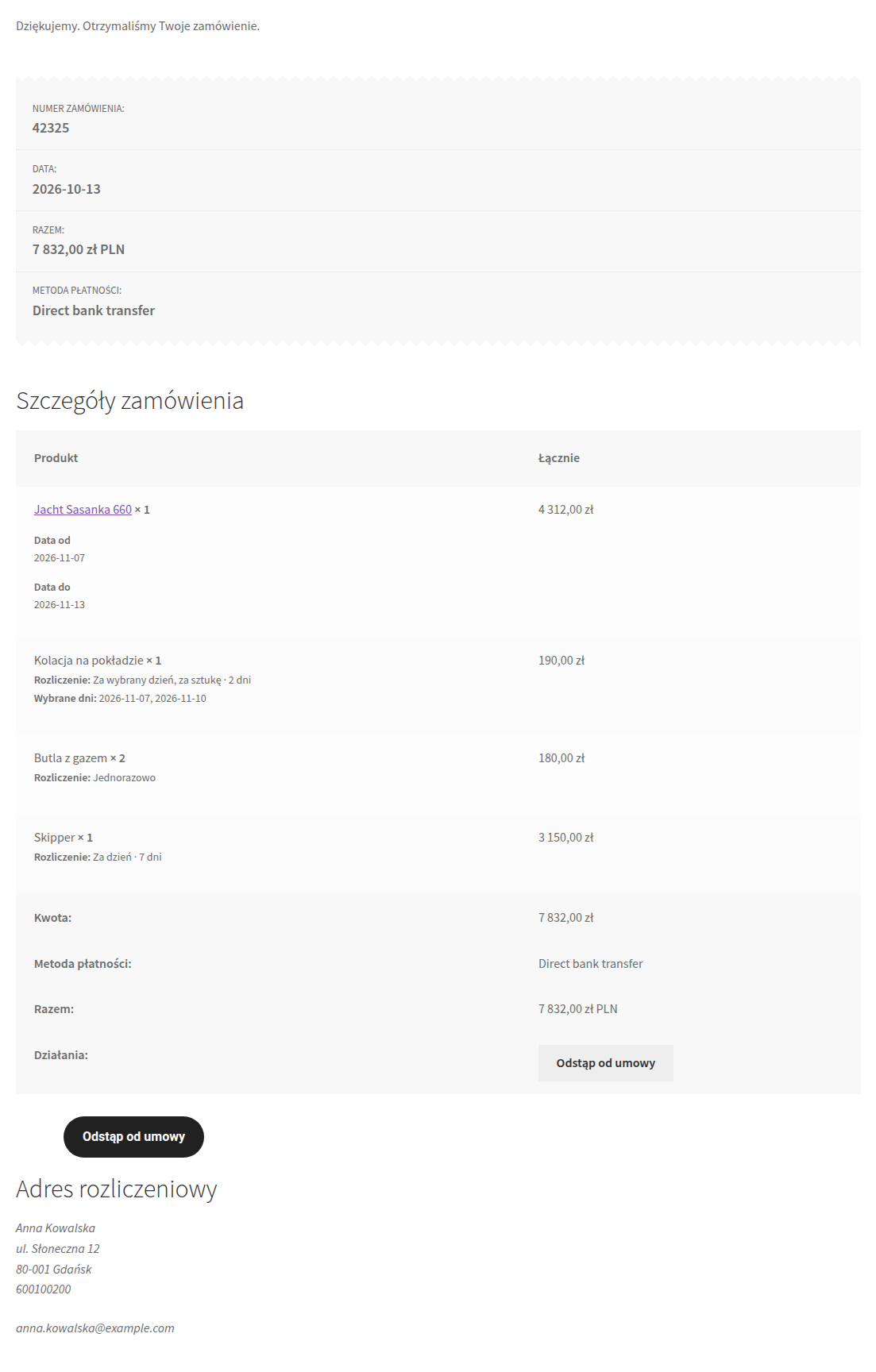
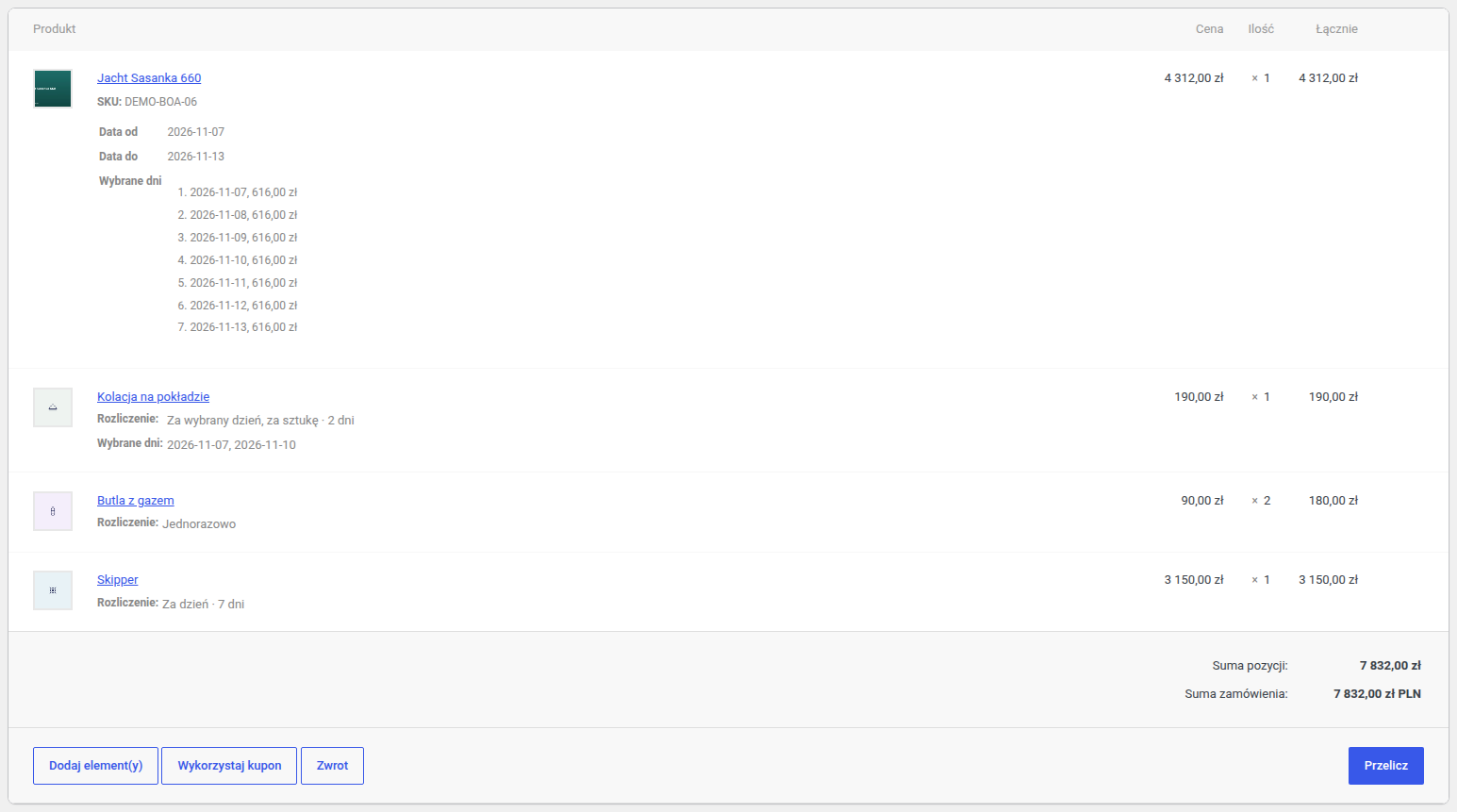
In the admin, add-ons are ordinary order lines, right under the booking they belong to:
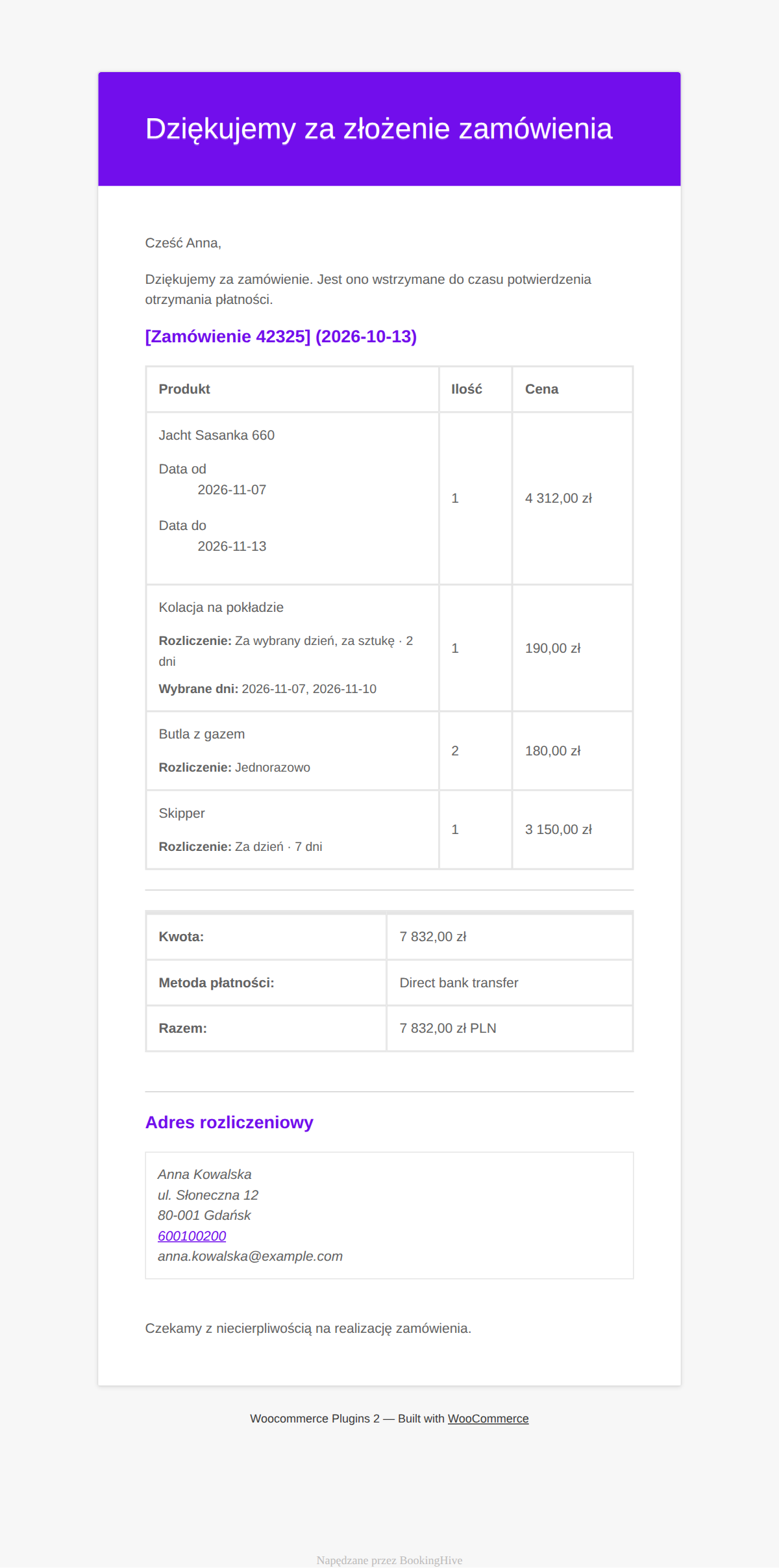
Add-ons appear in the WooCommerce order e-mails:
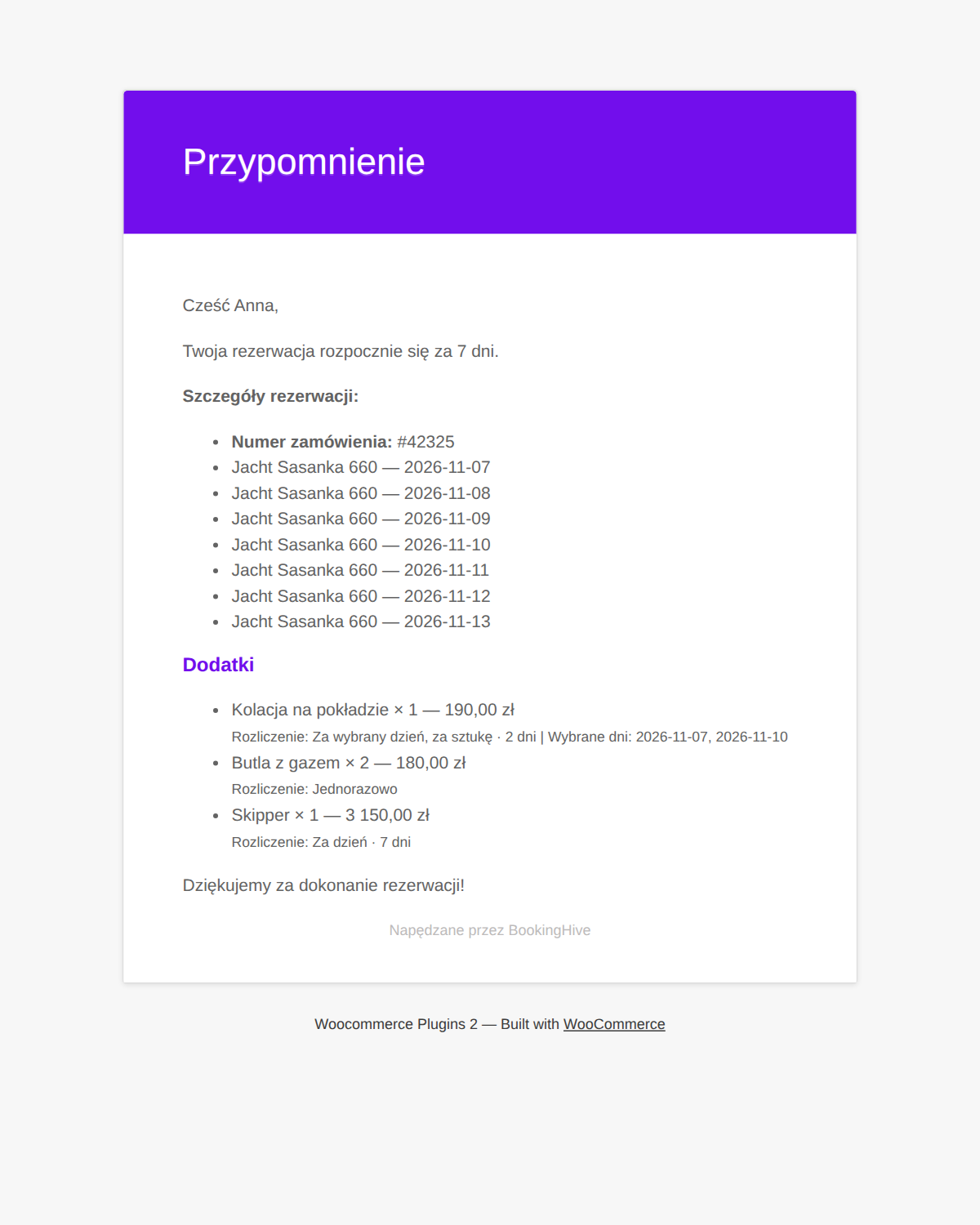
and — in a separate Add-ons section — in the StayNotifications e-mails (reminder, cancellation link, cancellation confirmation):
Add-ons do not occupy dates: availability in the calendar and in the Reservations dashboard depends on the booking alone.