A booking rarely ends with the dates. A cabin comes with breakfast, a yacht with a skipper and a gas bottle, an apartment with cleaning after check-out. Usually that is sorted out by e-mail, over the phone or on arrival — and some of those services simply never get sold. Now the guest picks them while booking.
Add-ons at the moment the guest has decided
The guest chooses the dates, clicks Reserve and immediately sees what can be added to the stay: with a picture, a short description and a price. They tick what they want — dinner on two chosen evenings, two gas bottles, a skipper for the whole week — and see straight away how much it adds. One click, and everything is in the cart.
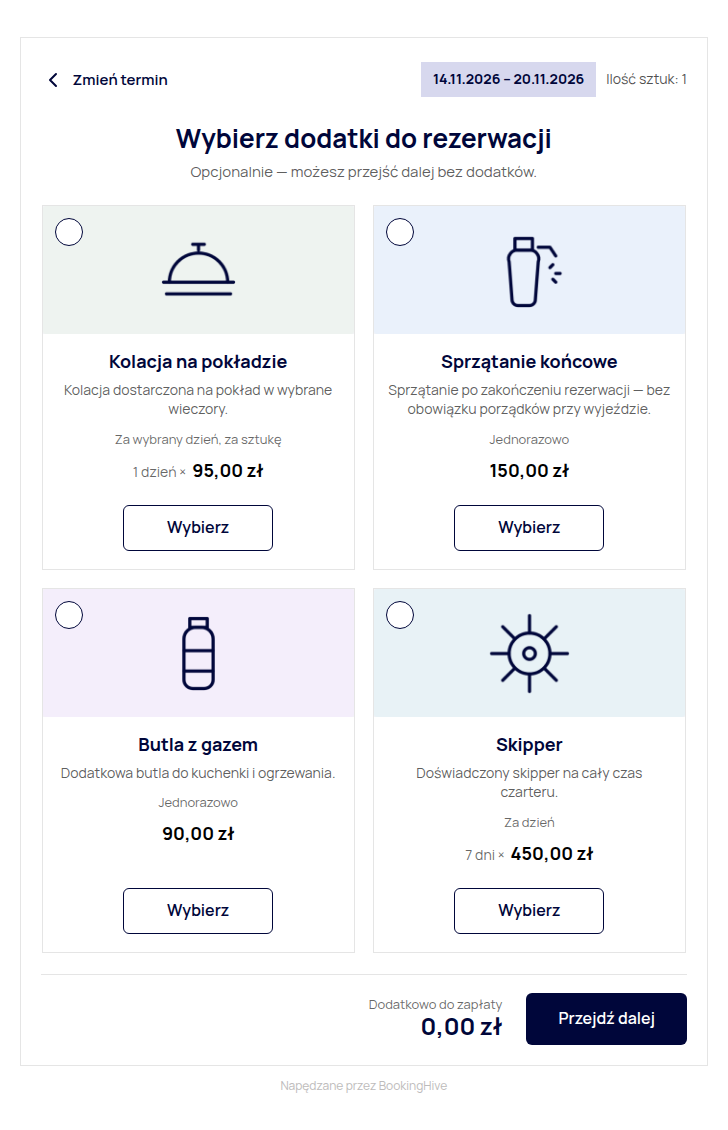
It is a good moment for such an offer: the decision to travel is already made, and the extras are right there instead of getting lost in the product description. On a phone everything lines up in a clear list, and a property without add-ons books just as quickly as before.
Prices that fit the service
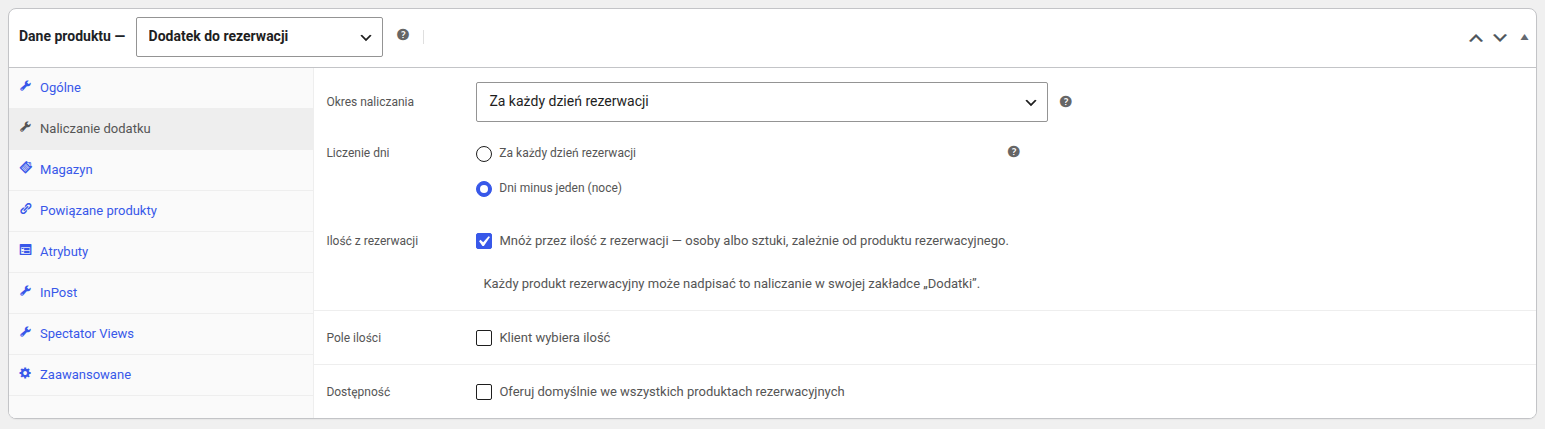
Every add-on is charged the way that makes sense for your property:
- once per stay — final cleaning, a welcome pack, an extra gas bottle,
- per day or per night — breakfast, a skipper, a bike rental,
- on chosen days — dinner on board or a hot tub for one evening,
- per guest or for everyone — breakfast per guest, cleaning once for the whole cabin.
Breakfast at 34 zł for two guests over a week's stay comes to 476 zł — worked out automatically, with no calculator and no amounts typed into the order.
One catalogue, many properties
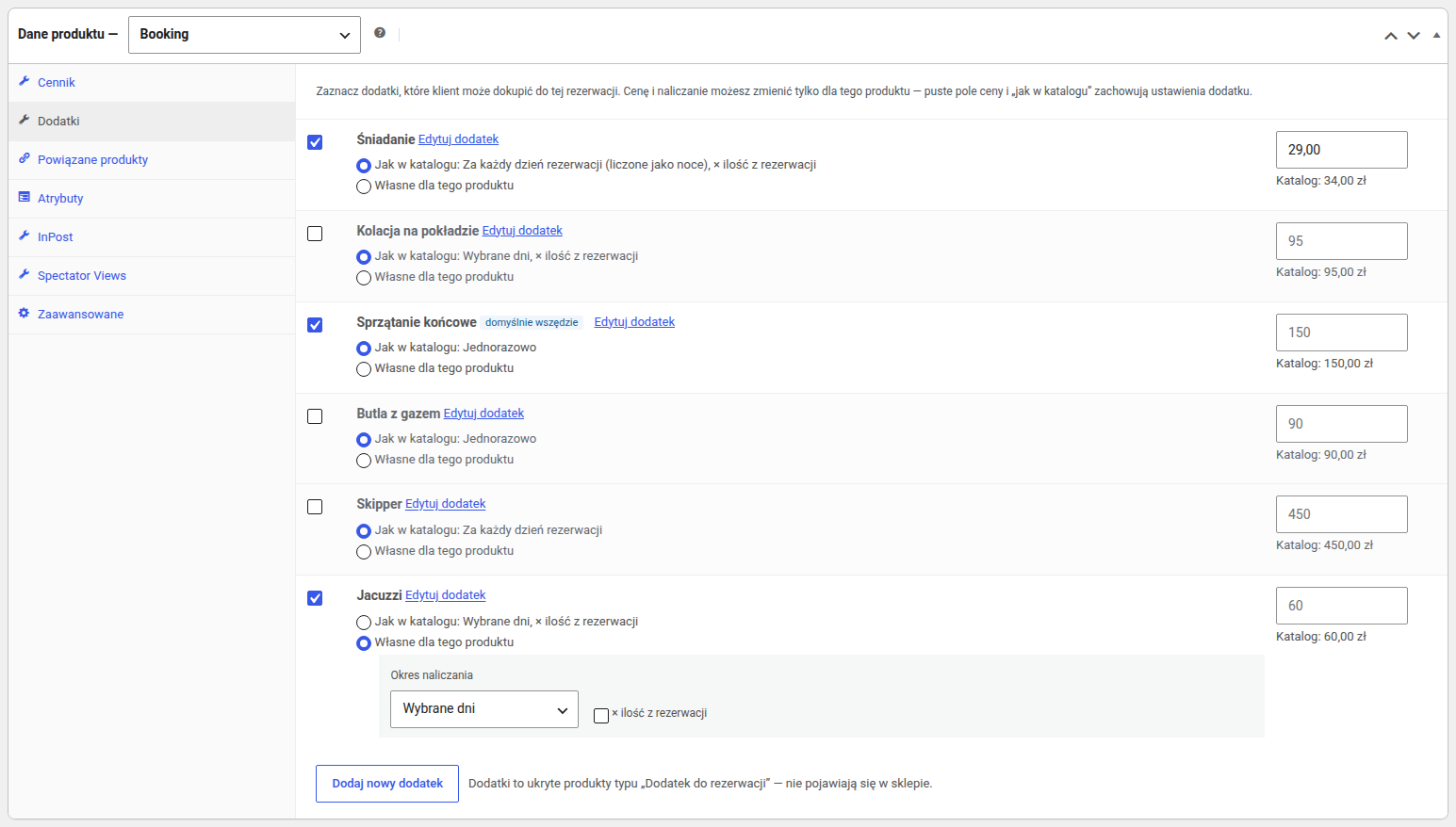
You create add-ons once and decide where to offer them: cleaning in every property, breakfast only in the cabins, a skipper only on the yachts. Each property can also have its own price or a different way of charging — a hot tub per guest in a hotel, once for the whole cabin in a cabin.
Everything in one order
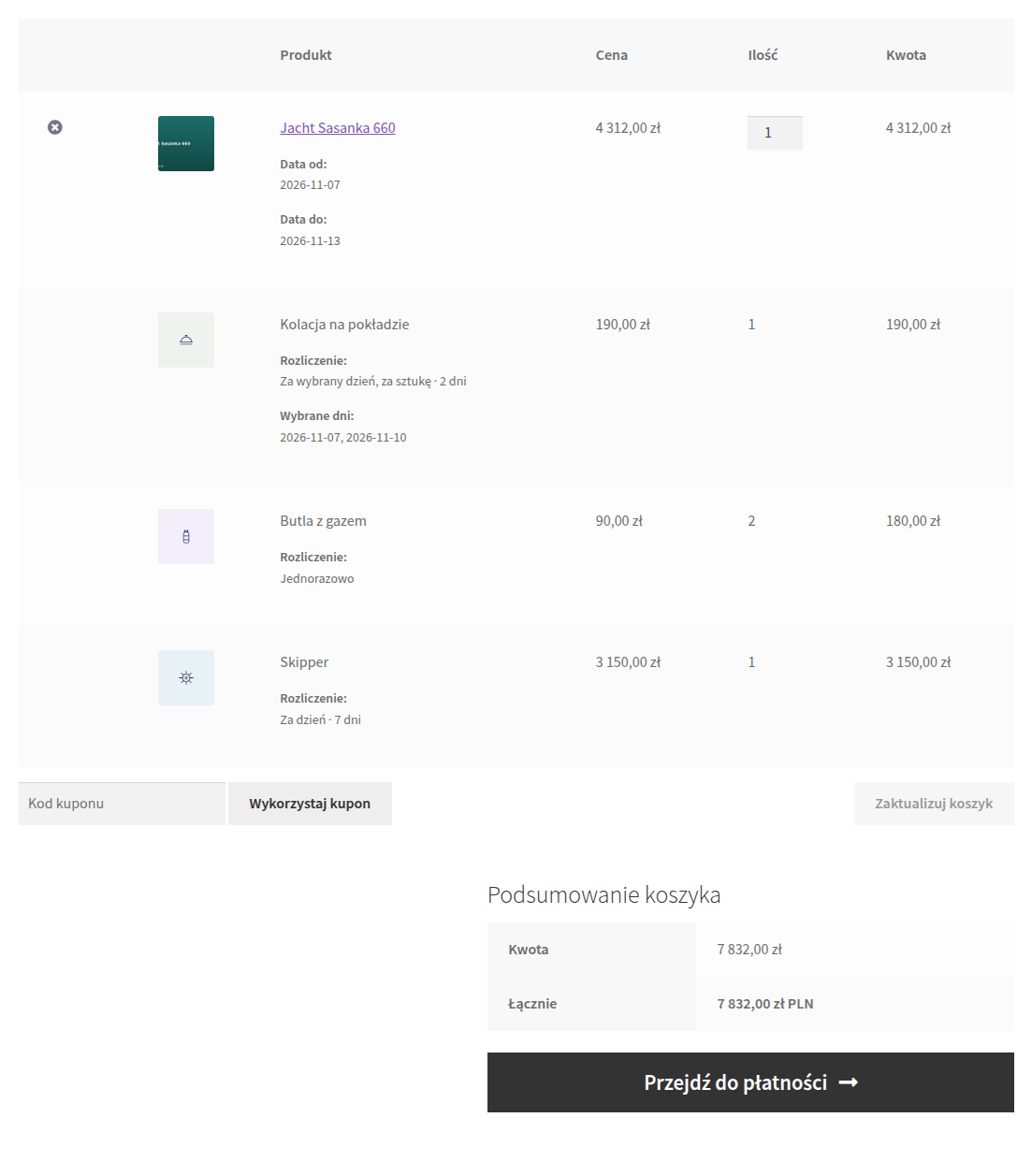
Add-ons go into the cart together with the booking and stay next to it all the way: in the order summary, in the confirmation sent to the guest and on the invoice, each as a separate line. You also see which add-ons sell best, in the regular WooCommerce sales reports.
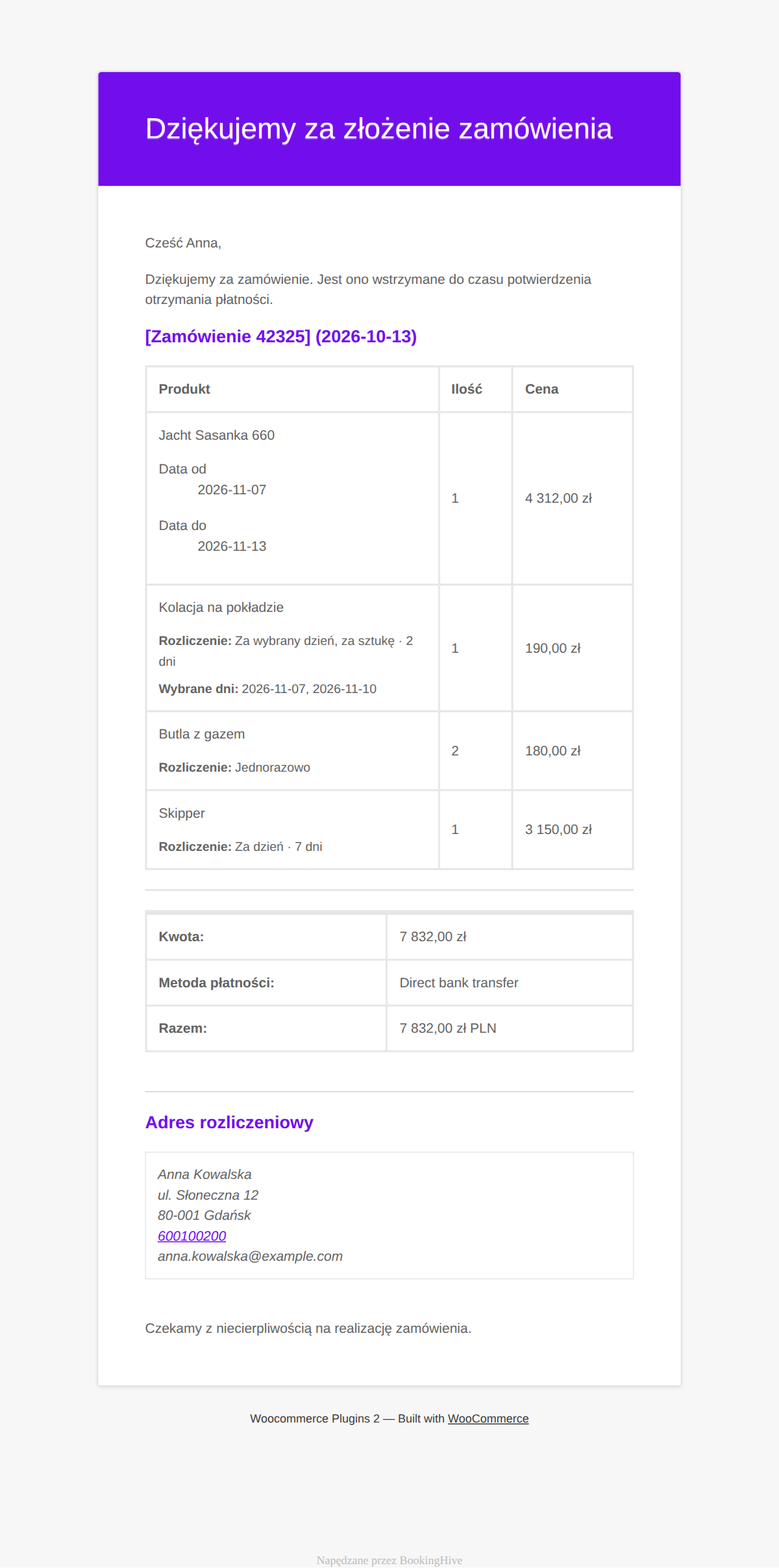
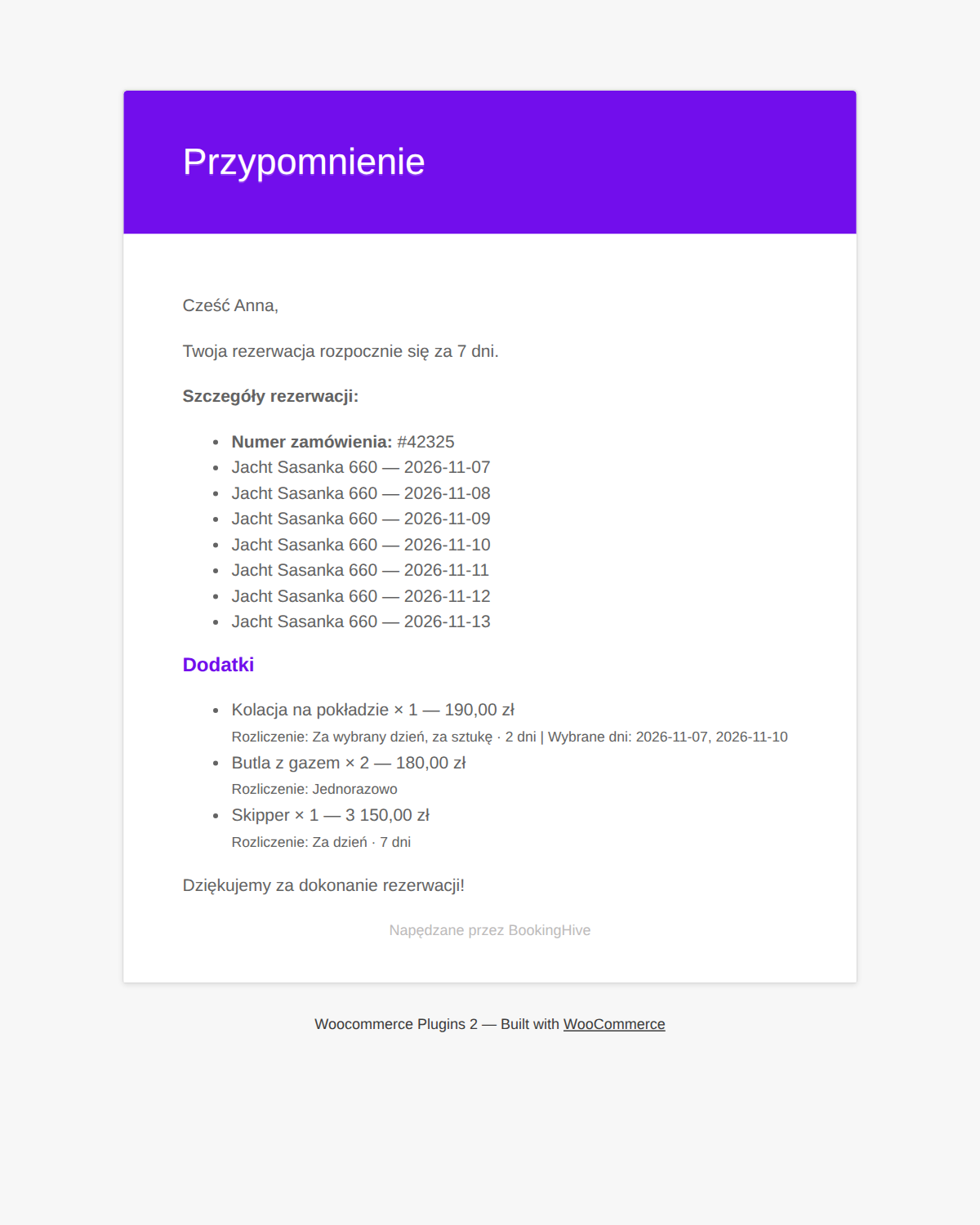
The guest gets a reminder before the stay listing what they ordered, so nobody has to dig out an old e-mail to check whether breakfast is included.
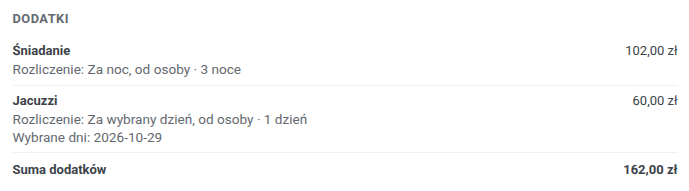
You see the same in the Reservations dashboard: the reservation details list the add-ons bought with it, with their days, billing and amount.
Getting started
Switch add-ons on under BookingHive → Modules. Choose whether guests see them in a separate step after clicking Reserve or right under the calendar, then create your first add-on just like any product in the shop. Until you switch the module on, nothing in the shop changes.
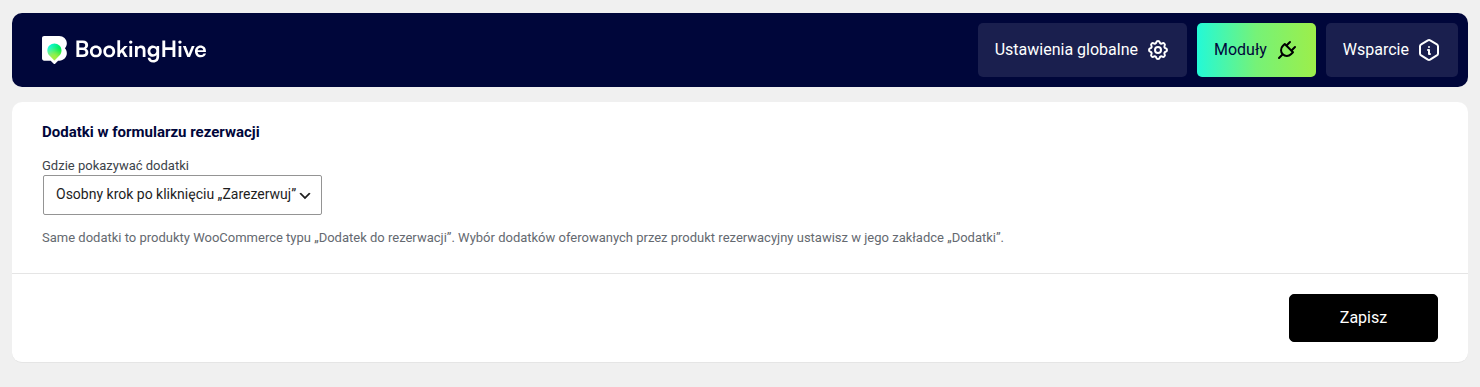
The user manual walks through the setup step by step, and the FAQ answers the detailed questions in its section on booking add-ons.
Cart and orders that keep their data
A product that is not a booking now reaches the cart with everything other plugins attach to it — a gift message, a personalisation, a chosen option. Before, that data was lost on the way.
An order holding a line whose product has since been deleted from the shop now opens normally in the admin. Before, the order screen stopped with an error.